


How to guide to help you reset your BNQ Global account password.
B555777B
Updated at: 3 years ago
How to Reset Your BNQ Global Account Password
You can reset your password on the BNQ Global app or the BNQ Global website. Note: For your security measures, the account withdrawals, P2P trading, and payment services will be suspended for 24 hours after the password has been reset.
For PC/Desktop Users:
1) Go to our website homepage www.bnqglobal.com
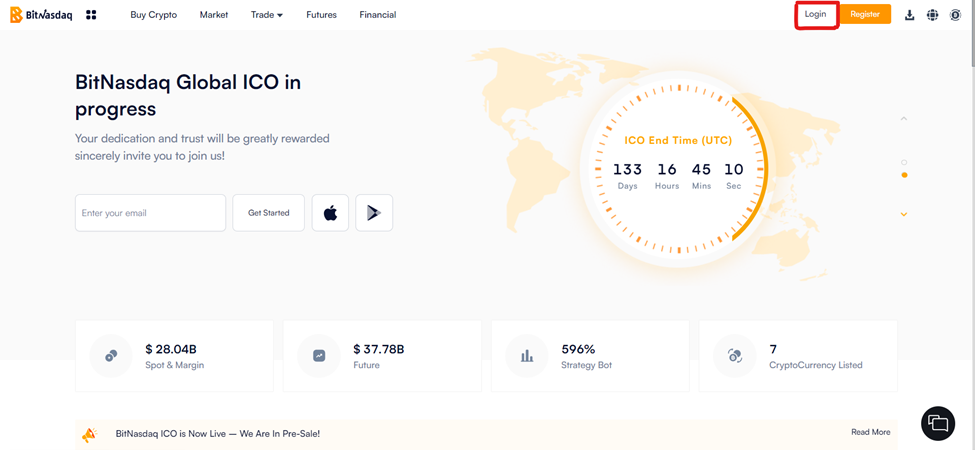
2) Click on Login
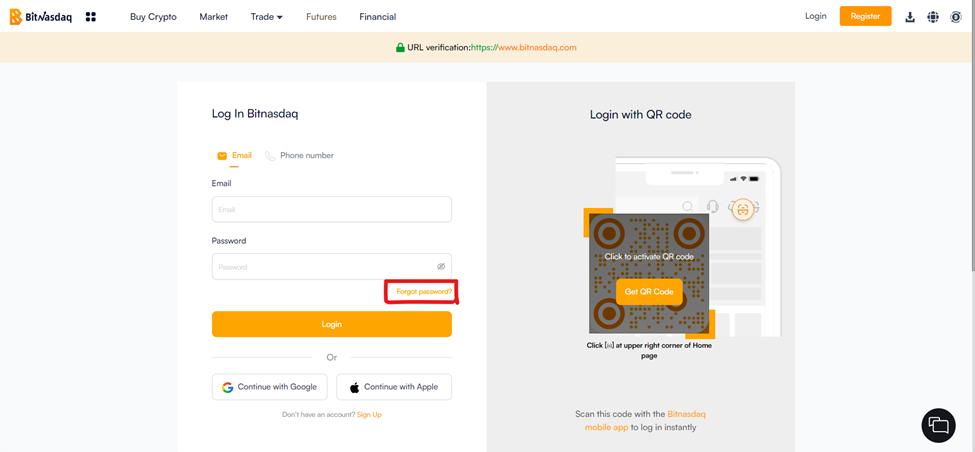
3) On the next page, click Forgot Password
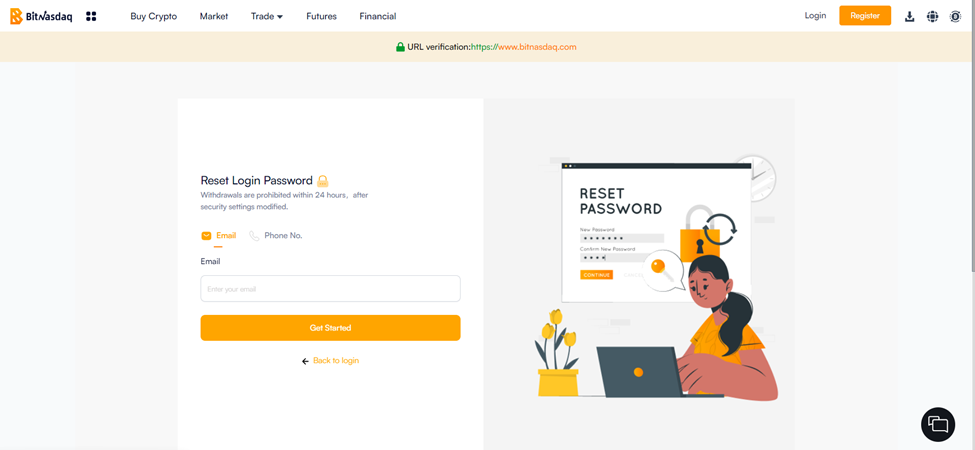
4) Enter either the email or the phone number verified with your account and click Get Started
5) Enter the required code, and click Next
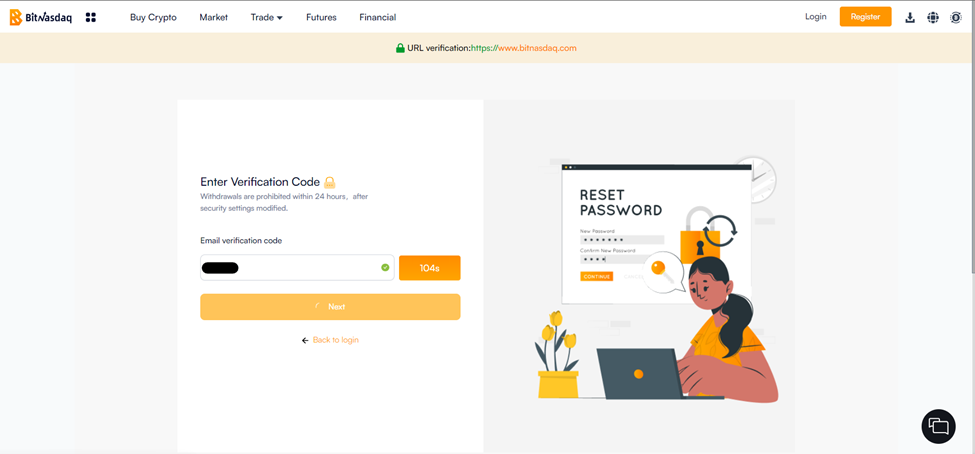
Note: If you entered your email, you’ll receive the code on your email. If you entered your phone number, you’ll receive the code on your registered phone number. Enter the 2FA code which you will either receive on your registered email or registered phone number.
6) On the next page enter your new password, confirm it, and click Confirm
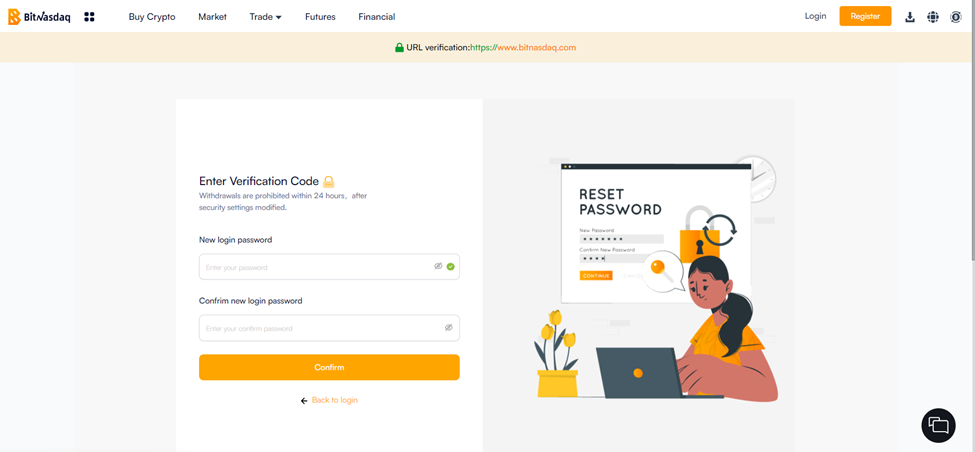
7) Your password has been changed successfully, and you can now use your new password to login.
For Mobile/Application Users:
1) Open your BNQ Global app
2) Tap on the Profile icon in the top left corner
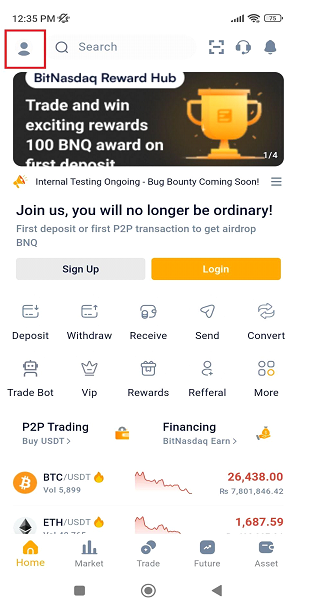
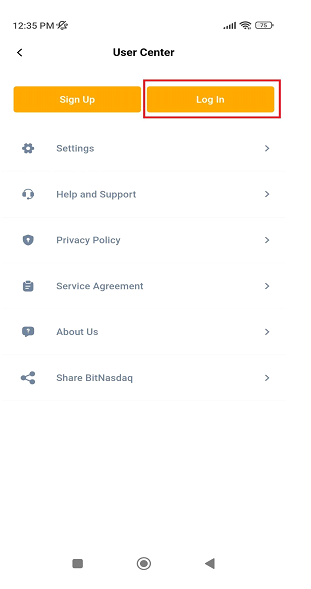
3) Tap on Login
4) On the next page, tap Forgot Password
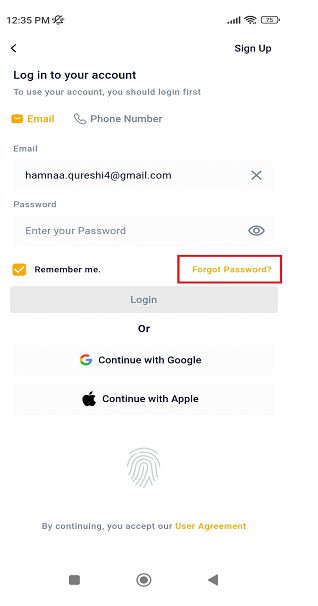
5) Enter either the email or the phone number verified with your account and tap Next
6) Complete the security verification check at this point. Enter the required code, and tap Submit
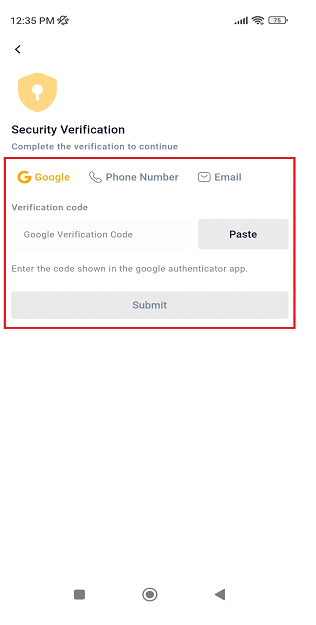
Note: If you entered your email, you’ll receive the code on your email. If you entered your phone number, you’ll receive the code on your registered phone number. Enter the 2FA code which you will either receive on your registered email or registered phone number.
8) Enter your new password, confirm it, and tap Next
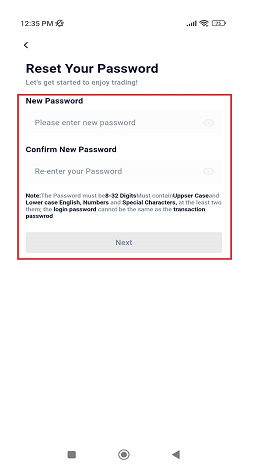
9) Your password has been changed successfully, and you can now use your new password to login.